
ByteBridge / Networking
Remote access and Friends
Give each client a trusted HTTPS address, then let two ByteBridge accounts exchange a file through their own servers.
- Private HTTPS
- Tailscale Serve
- Custom domain
- SWAG reverse proxy
- File delivery
- ByteBridge Friends
Reach ByteBridge privately with Tailscale
Use this route to open Web from a laptop, reconnect Android away from home, or let a second ByteBridge host deliver a Friends drop. Each device or server making a connection needs a route to the host and permission to use its HTTPS port.
Set up HTTPS in the browser
- In the setup guide’s HTTPS & access step choose ByteBridge-managed Tailscale. Keep or edit the suggested device name. Review the destination tailnet and check for name conflicts.
- Sign in and approve the new device. Refresh its status, choose an available HTTPS port and enable HTTPS. MagicDNS, HTTPS certificates or device approval may need enabling in the Tailscale admin portal.
- Open Continue on https://…. Sign in at that exact address, verify this HTTPS connection, save the verified address, then Continue there. You can revisit it in Settings → HTTPS & advertised address.
- Connect your phone or laptop to the intended tailnet and test the full address, including any nonstandard port. Use the verified origin for Android pairing and Friends.
This mode runs a separate userspace Tailscale node inside the ByteBridge deployment. It needs no host Tailscale installation, privileged container or Docker socket, and preserves existing host Serve routes. Keep its private network-state volume through upgrades. Each independent server enrolls its own node.
Use an existing host Tailscale route instead
Select the existing HTTPS route in the wizard and enter its origin. On the host, first inspect existing listeners. This example assumes local port 5151 and an unused HTTPS port 8443:
tailscale serve status
curl --fail http://127.0.0.1:5151/healthz
sudo tailscale serve --bg --https=8443 http://127.0.0.1:5151
tailscale serve status
Open the exact URL printed, then complete the same browser verification. This alternative requires Tailscale on the host. Keep working listeners and choose a free port.
Connect Friends across separate tailnets
Each operator shares their server machine with the other operator and accepts the other operator’s share. Allow the selected HTTPS port for the intended peers in both directions. From each home server, run Friends → Friends → Check connection against the other host. A successful outbound send tests only one direction. The recipient’s server also needs a route back to acknowledge pickup.
For a DNS or certificate failure, run Doctor on the physical host making the request. Compare host and container resolution, certificate hostname and the expected ByteBridge host identity. A browser on the host and a process inside its container can use different DNS settings.
Serve a custom HTTPS domain with SWAG
A full-site proxy can carry Web sign-in, file transfers, Android Device Bridge and Friends over one hostname. Complete the first administrator setup privately. For these examples, replace bb.example.com with a domain you control and bytebridge-web with the upstream container name on your proxy network.
- Route the hostname. Point DNS at your proxy. For public access, route inbound TCP 443 to SWAG and obtain a trusted certificate covering your hostname through SWAG’s configured validation method. For private access, configure DNS and routing for the devices that need it. Keep the ByteBridge backend reachable only by the intended host or proxy network.
- Connect the containers. For a same-host deployment, attach ByteBridge to SWAG’s existing user-defined Docker network in the persistent host or Compose settings. SWAG can then reach the unique upstream name on container port 8080. If SWAG runs elsewhere, use a private host address and published port reachable from SWAG.
- Set the external origin. Apply the following settings in the active deployment and recreate that ByteBridge service through its manager or Compose. Device-pairing QR codes use the advertised origin, so include any nonstandard HTTPS port.
BB_PUBLIC_URL=https://bb.example.com
BB_SECURE_COOKIE=1
Full-site SWAG configuration
In /config/nginx/proxy-confs/bytebridge.subdomain.conf, use one virtual host for this name. The upgrade map belongs in the Nginx http context. Reuse any equivalent map already present. The body limit is an example for ordinary Web uploads. Set it to fit your deployment.
map $http_upgrade $bb_connection {
    default upgrade;
    '' close;
}

server {
    listen 443 ssl;
    listen [::]:443 ssl;
    server_name bb.example.com;
    include /config/nginx/ssl.conf;
    resolver 127.0.0.11 valid=30s;
    set $bb_upstream bytebridge-web;

    location / {
        proxy_pass http://$bb_upstream:8080;
        proxy_http_version 1.1;
        proxy_set_header Host $host;
        proxy_set_header X-Forwarded-Proto $scheme;
        proxy_set_header X-Forwarded-For $remote_addr;
        proxy_set_header X-Real-IP $remote_addr;
        proxy_set_header Upgrade $http_upgrade;
        proxy_set_header Connection $bb_connection;
        proxy_request_buffering off;
        proxy_buffering off;
        proxy_read_timeout 3600s;
        proxy_send_timeout 3600s;
        client_max_body_size 20g;
    }
}
Test the configuration before reloading, then test the HTTPS endpoint from a client. Substitute your SWAG container name if it differs.
docker exec swag nginx -t && docker exec swag nginx -s reload
curl --fail https://bb.example.com/healthz
Sign in at the root URL. Open a small file, pair Android through the same hostname and browse a granted phone folder. A 502 points to the upstream name, port or network. If sign-in works but the connected phone stays offline, inspect the WebSocket upgrade on /api/device-channel. A successful handshake returns HTTP 101.
Expose only Friends to the internet
You can keep the Web interface, sign-in and device pairing private while publishing a dedicated Friends hostname. Use the release’s restricted Nginx example in bytebridge-web/docs/friends-direct.md. It allowlists signed peer operations under /peer/, accepts POST, admits the one-MiB chunks plus overhead, strips browser credentials and returns 404 for other paths. Use the private Web URL for administration and run Check connection from the peer to validate the public endpoint. The full-site example above publishes the entire application.
The installed Web interface also provides a copyable full-site example in Friends → Friends Info. SWAG reverse proxy documentation
Send a file with ByteBridge Friends
A drop is one file addressed to one paired account. For example, pick a PDF on your phone, stage it on your home server, and let your friend save it from their server to a laptop share. Each person uses their own account and chooses their own storage. The pairing grants delivery to an inbox. It gives the sender no access to the recipient’s file tree or Docker controls.
Pair two accounts
- Enable each host. Both operators sign in to their Web instances and open Friends → Friends → Pair by host address. On a fresh installation, confirm its own reachable HTTPS address with Enable this host. Keep the persistent Web data volume, which holds the service identity and drop journal.
- Request the pairing. On the sending host enter the recipient host’s full HTTPS origin and optional username, then choose Send pairing request. Leaving the username blank routes the request to that host’s administrators. An administrator can also use Approve address only to allow a peer address in advance.
- Review both identities. The recipient opens Review request and approves the named account. A previously unknown origin needs administrator approval. The requester then opens Check approval, reviews who accepted and chooses Confirm pairing. Requests expire after 15 minutes. To compare the optional six-digit codes, exchange them over a separate trusted channel at each approval step.
- Check both directions. In Friends → Friends → Check connection, select the approved peer. Run the check on each host. It exercises DNS, HTTPS and the signed Friends response from the server that actually sends the drop.
Use a manual invitation or add a backup route
For Manual invite, exchange identity cards and independently compare the full account fingerprints. The recipient creates an invite for that sender. The sender accepts the private invite and enters the verified recipient fingerprint. When using a Friends-only public proxy, paste the invite into the private Web interface.
To use both Tailscale and a public domain, approve the alternate address on the sending host, open the friend’s Routes, add it, choose Save routes, then Test route. Repeat on the other host when it needs the return path. Automatic routing prefers approved Tailscale addresses. Keep the original approved address as the pairing identity. A service key change requires independent verification and a new pairing.
Send, receive and confirm
- Choose the source. In Web, open Friends → Outbox and use Choose local file or Choose connection file. Select the friend and send. On Android, open Settings → Friends, choose your paired home server, or use Send to Friend on a phone file. A server connection used through Android requires file-relay authorization on that home server.
- Wait for staging. When the drop shows Queued, the home server has the staged file and can continue delivery if the sending phone disconnects. An offline recipient host can receive it later within its retention window. Ready for pickup means the receiving host has verified and stored the drop.
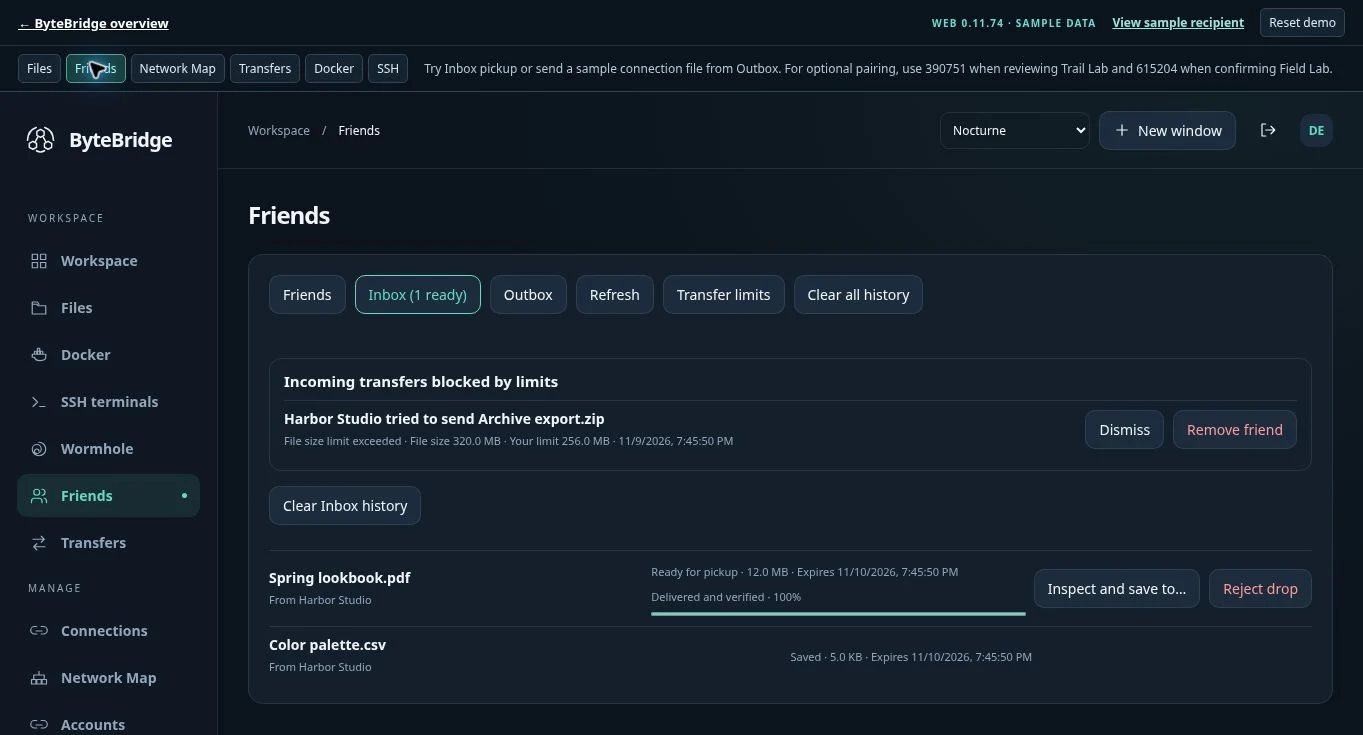
- Save the received file. In the recipient’s Web Inbox, select Inspect and save to… and choose a writable destination folder. On Android, choose Save to phone or Save to server and pick the writable destination. For the latter, enable relay writes on that connection. Open the saved file at its destination and check for Saved in the sender’s Outbox.
Confirmation pending means the save receipt has yet to reach the sender. Test the return route and use Retry confirmation in the recipient Inbox. For a refused file, read the Outbox notice and check the receiving host’s Transfer limits, including maximum file size, remaining sandbox quota and whether new incoming drops are paused. Recipients can reject an unclaimed drop. Senders can retract an unclaimed drop. Files already saved remain at the chosen destination.