DIRECT CONNECTION
Take the phone straight to storage.
Android⇄SFTP server or SMB share
Use a server address reachable from the phone over your network or VPN.

BITS & CRUMBS / BYTEBRIDGE
Browse, move, and edit files across the devices and servers you already use. Start on Android or run your own ByteBridge Web workspace and connect from the browser, desktop, or VS Code.
Setup and usage
Start with a single file and two devices. Add remote access, native mounts and server controls as you need them.
01 / CHOOSE A PLATFORM
Android can connect directly to supported storage. Run Web for the browser workspace, Desktop, VS Code, and Android Device Bridge.
Browse phone storage and connect directly to an SFTP server or SMB share. Pair with ByteBridge Web to make selected phone folders available in the browser.
View setup guide Self-hosted serverRun the browser workspace on your Linux host. Browse connected storage, manage Docker, open SSH terminals, and track server-side transfers.
View setup guide Windows and LinuxMount a connection as a Windows drive with WinFsp or a Linux folder with FUSE 3. Share selected computer folders back to Web with Desktop Bridge.
View setup guide Developer extensionOpen files from approved ByteBridge connections in native editor tabs, or work with a virtual folder or a managed local copy.
View setup guide02 / HOW IT CONNECTS
DIRECT CONNECTION
Use a server address reachable from the phone over your network or VPN.
SELF-HOSTED WORKSPACE
Your Web instance uses the connections and folder grants you configure. Each client needs a route to Web.
03 / SEE WHAT YOU CAN DO
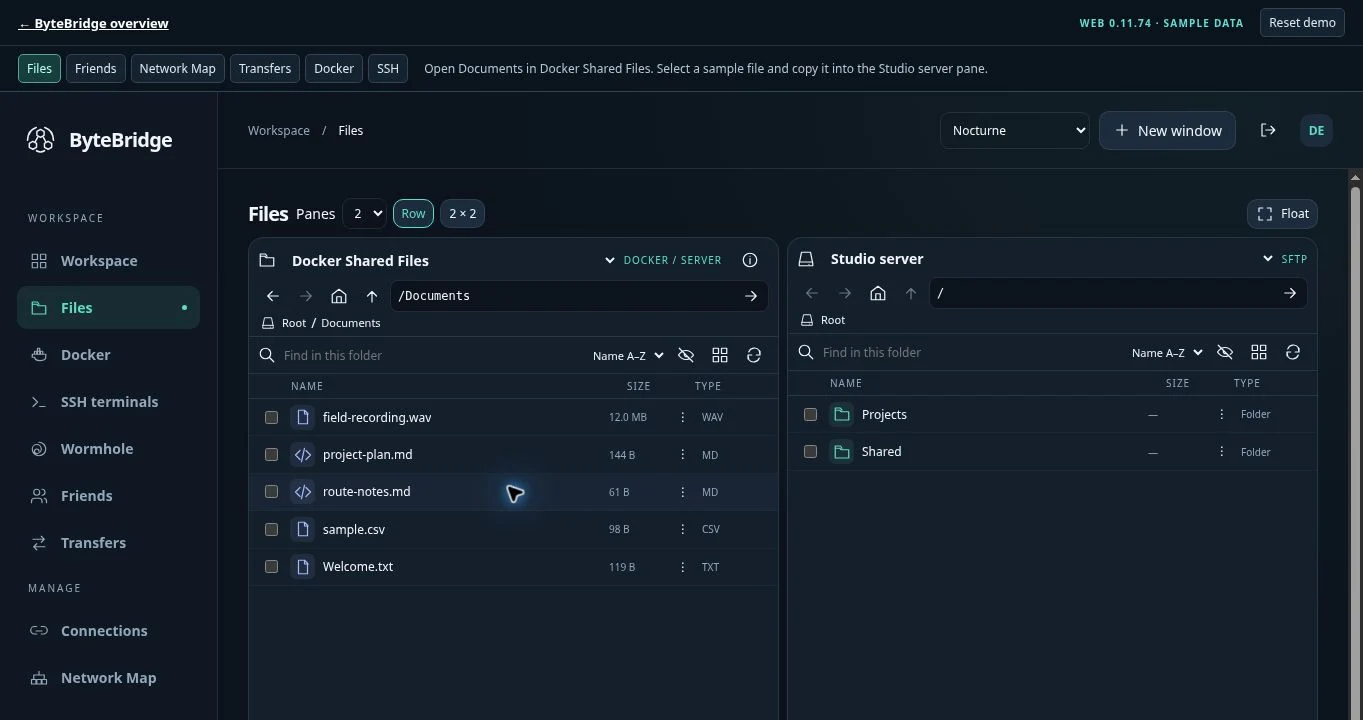
On Android, open phone storage in one dock position and your NAS or SFTP connection in the other. Copy a file and check its progress in Transfers.
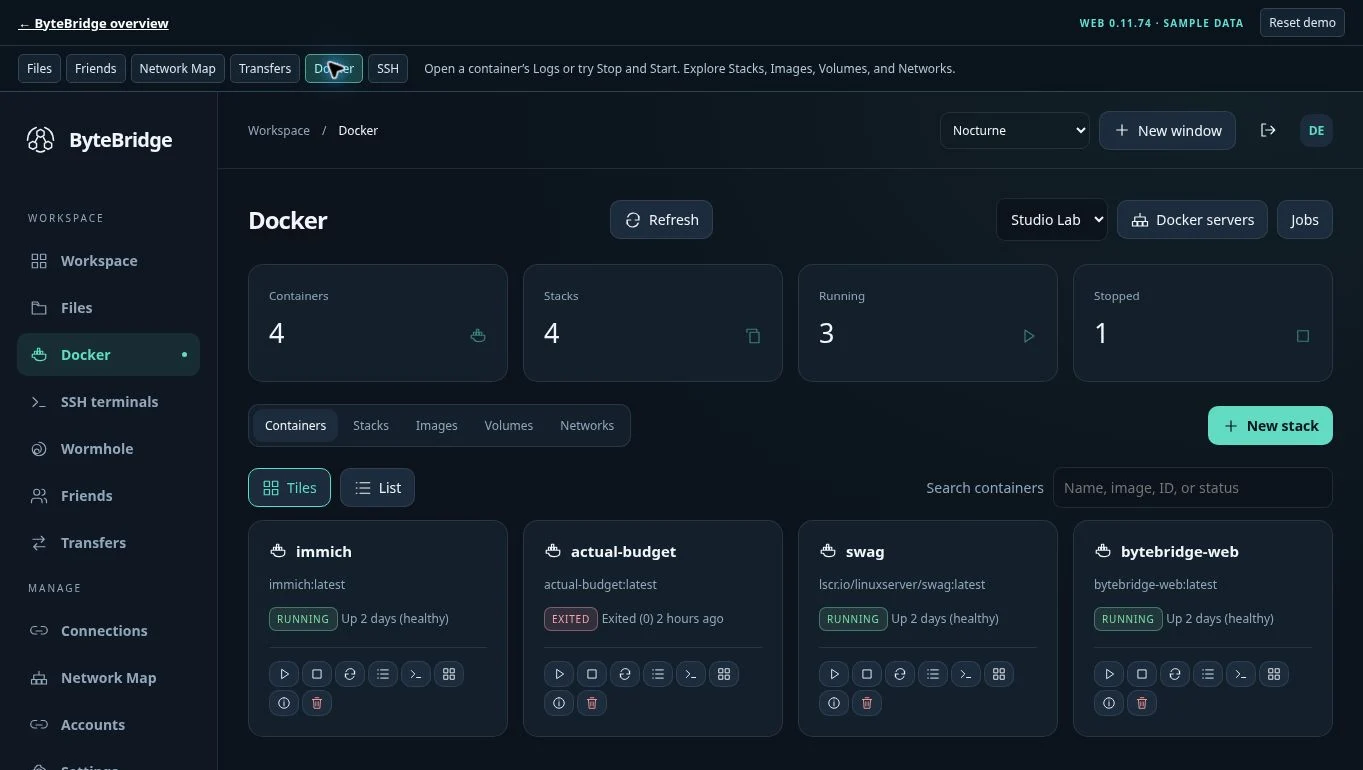
See Android setupOpen Docker in ByteBridge Web, inspect a container and its logs, then use the same workspace to check the connected files or open an SSH session.
Try Docker with sample containersOpen a file in the Web Code Editor, or hand it off to VS Code after granting the extension access to the connection. Save through ByteBridge.
Set up the VS Code extension04 / BROWSER PLAYGROUND
Copy files between panes, check Docker logs, or open a simulated SSH session. The demo uses sample data and can be reset anytime.
WEB WORKFLOWS
Try these workflows in the browser using sample servers and files.
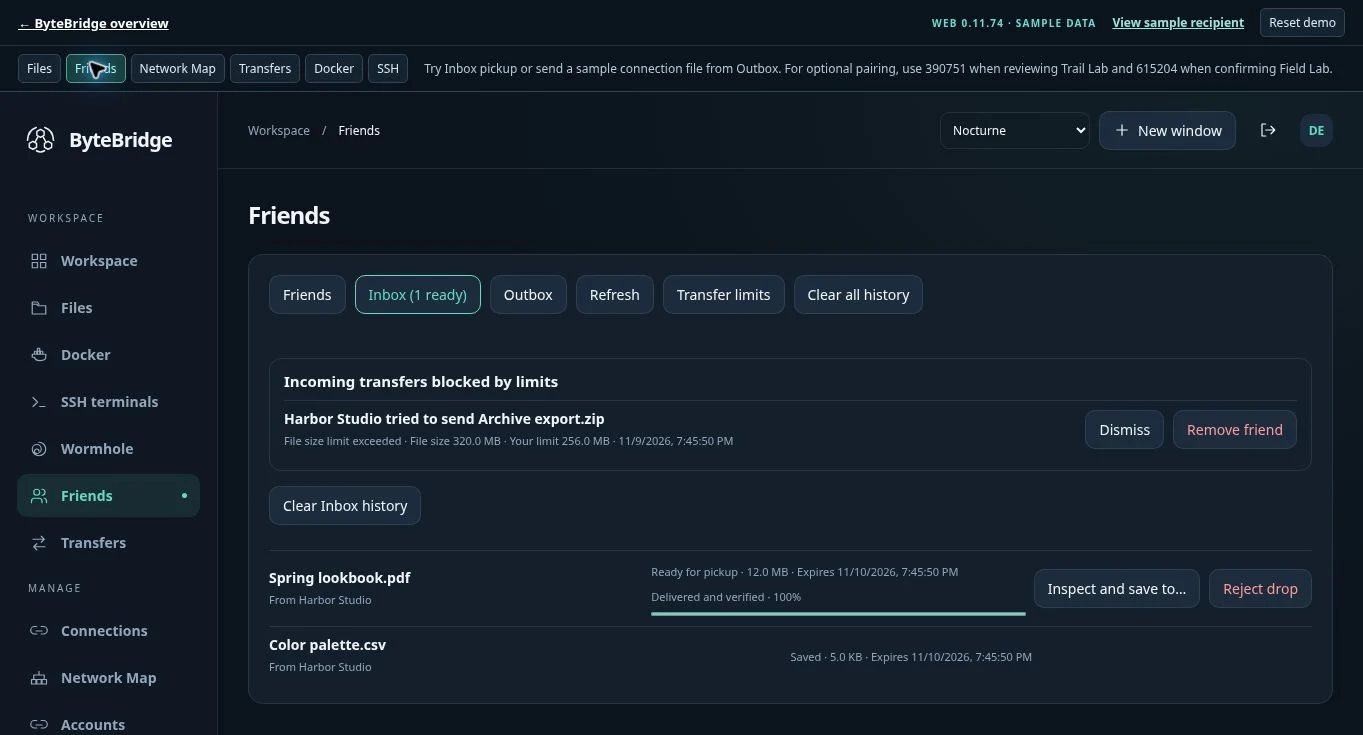
Pair accounts, track delivery from Outbox, then pick up a file in Inbox. Try the oversized sample to see the refusal and the recipient’s notice.
Try Friends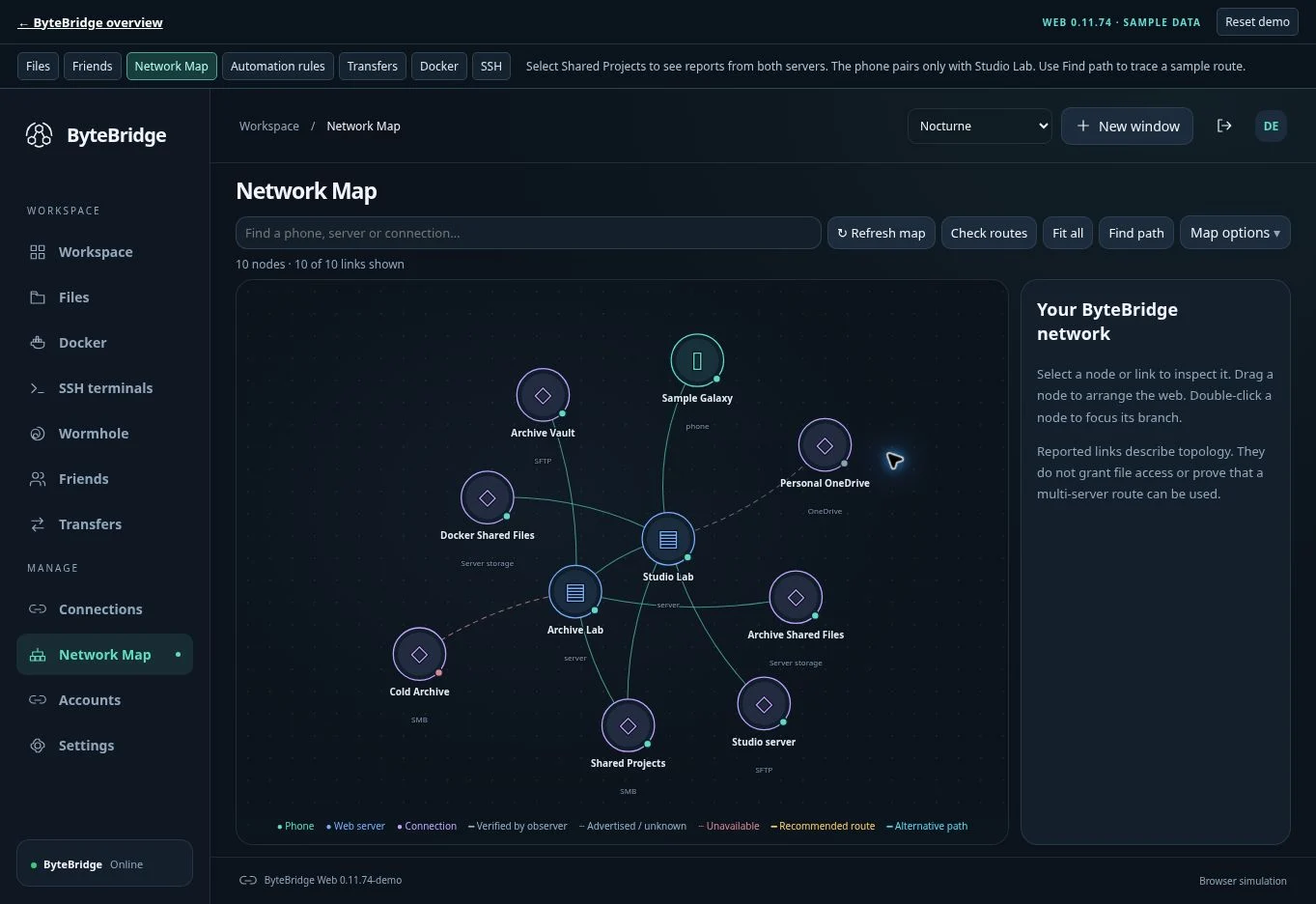
Select a link to see who checked it. Run Check routes, then use Live traffic to distinguish upload and download paths from the violet health checks.
Explore the Network Map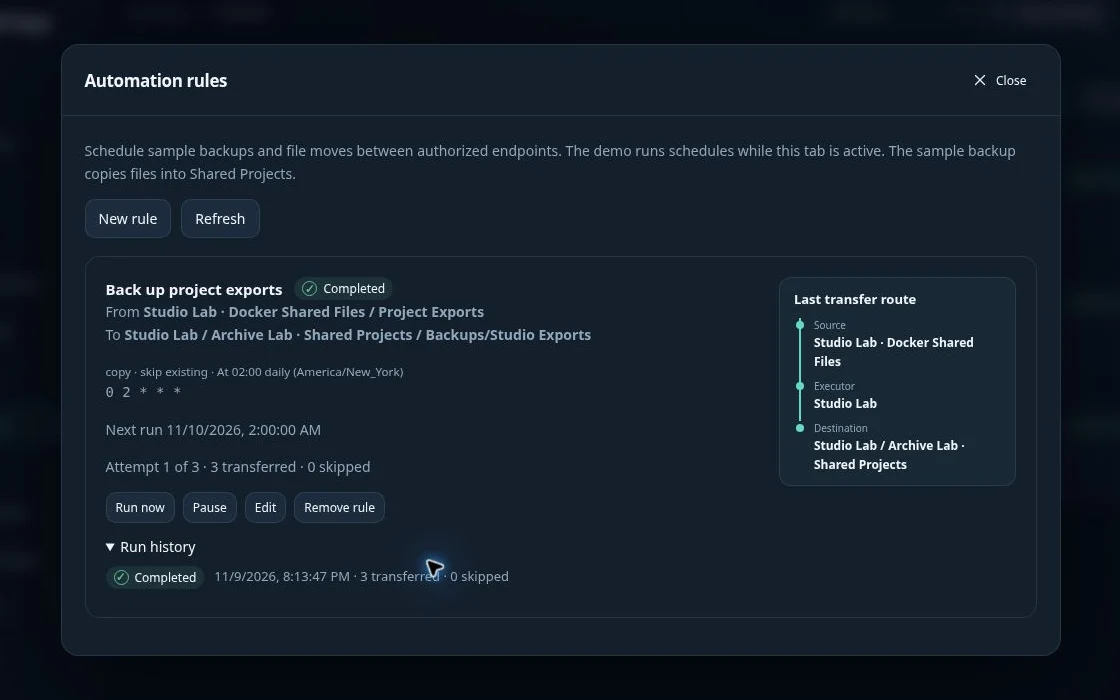
Run a backup from Studio Lab to Shared Projects. Check the route and run history, then run it again to see how Skip existing handles the copied files. Use the cron builder to preview a schedule.
Run the sample backupLATEST PLATFORM GUIDE · NOVEMBER 2026
Reviewed against Web 0.11.127, Android 0.6.266, Desktop 0.1.37 and VS Code 0.3.5. Browser demos use fictional data and simulate the selected workflows.