
ByteBridge / Platform guide
Setup and usage
Follow one file from an Android folder to a desktop reader. Then use the same setup to trace routes, inspect containers and schedule copies.
- Web
- 0.11.127
- Android
- 0.6.266
- Desktop
- 0.1.37 · Windows and Linux
Take one file from phone to desktop
Use a small PDF you can recognize. By the end you’ll have a copy on the server, see which device moved it, and be able to open it in a desktop reader.
- Start the server. Follow Install and claim the server on your Docker host. Sign in at its root URL. In Connections, add a writable SFTP connection. Open it in Files and create a folder called
Bridge test. - Give the phone a route. Set up Tailscale Serve or a trusted HTTPS reverse proxy. Open the same address on the phone. In Web Settings, import the signed license for this installation under Server license → Install or replace a license to enable its paired client features.
- Pair the phone. In Web Connections choose Add Android Device. Scan the QR from Android’s Web Connections, review the server address and grant read access to the folder containing the PDF. Keep ByteBridge open during this first test. Android pairing and connection modes
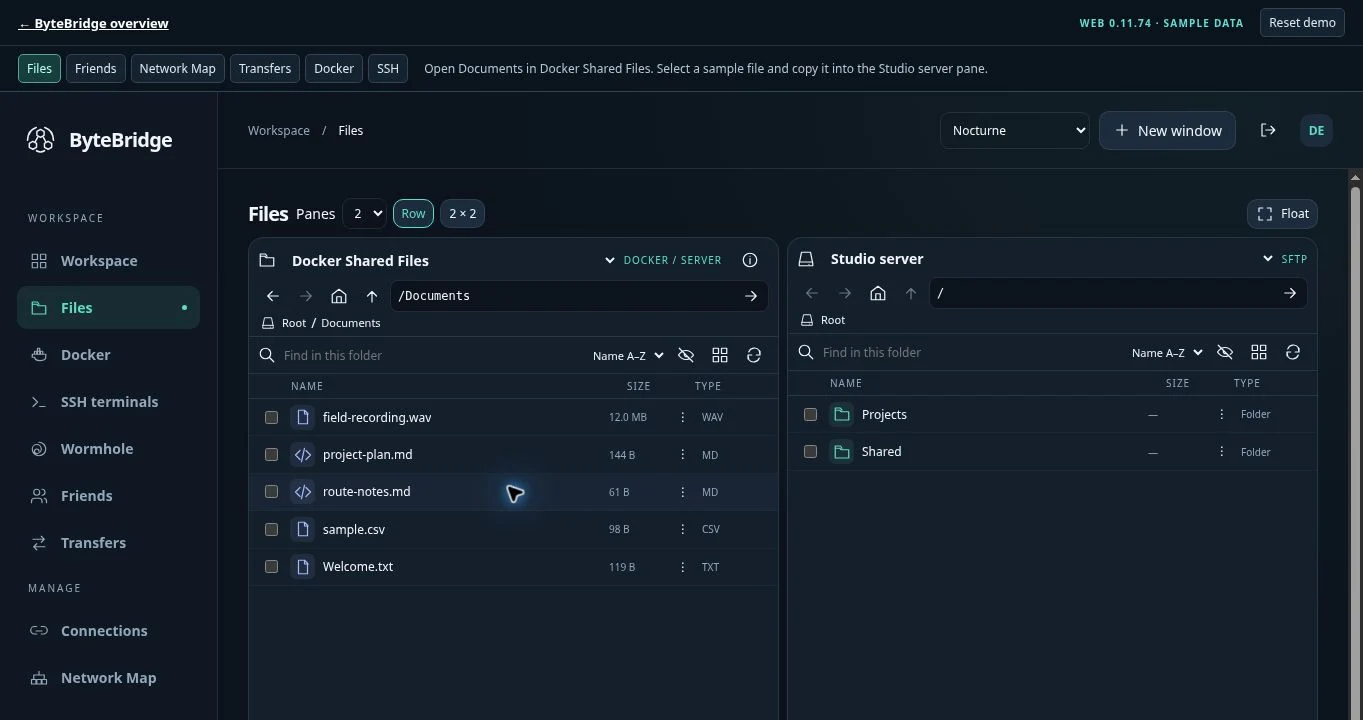
- Copy in Web. In one Files pane choose the paired phone and find the PDF. In the other choose the saved SFTP connection and open
Bridge test. Copy the PDF into that folder. In Transfers, wait for completion, then open the destination copy. - Open on the desktop. Add this server to Desktop and mount the eligible file connection containing the copy. Choose Open in Explorer on Windows or Open in Files on Linux. Open the PDF with your usual reader.
Just trying Web and Android? Use Docker Shared Files as your destination for the first copy. You can add an SFTP connection and try the desktop mount later.
Choose where a file actually lives
| Location | Where the bytes live | What needs to be available |
|---|---|---|
| Docker Shared Files | The server’s configured /files storage. | The Web host and its mounted volume. |
| Local Computer | A folder picked in the browser. | A supported desktop Chromium browser on HTTPS or loopback. Grant folder access and keep the tab open for browser-owned transfers. |
| Saved connection | A provider such as SFTP, SMB or OneDrive. | A route from the device or server doing the work, credentials, and access to the chosen folder. |
| Android Device Bridge | A folder approved on the phone. | The paired phone online for live browsing. Queued delivery to the phone has a separate receiving folder. |
| Desktop Bridge | A local folder shared by the desktop app. | The paired computer awake, with sharing started. Set up sharing. |
For a second Web server, configure the instance link or enroll the hosts in your shared deployment. Enable the required sharing on the server that owns the connection. In configured deployments, Settings → ByteBridge environments → Servers & sharing shows the hosts; Phones & permissions shows device grants. Remote summaries reflect the last report. Make permission changes on the owning server, then test from the consuming device.
To edit a text file, choose Open in Code Editor in Web, save a small change and reopen the file. For a project, authorize only its connection in the VS Code extension. A virtual workspace opens server files directly. A managed local copy supports tools that require a normal local filesystem.
Check a route and watch it carry a file
Suppose your browser reaches the Web server, but a copy from an SMB share stalls. The relevant question is whether the server doing the copying can reach that share. The map records which participant observed each connection.
- Open Network Map in Web or Android. Use Fit all, then select the server and its link to the share. Inspect its observer, direction and available evidence. Use Refresh to collect current topology reports.
- Choose Check routes for fresh checks from participating endpoints. An online phone can report its view when it opts into map sharing. A configured endpoint can appear on the map before a participant verifies it. For an unavailable link, read the observer’s result and test DNS, permissions or reachability from that device.
- Open Find path, pick a source and destination, then choose the operation you care about. Compare the suggested route with the reverse direction. Read and write grants can differ. A topology-only chain still needs an authorized operation before it can carry files.
- Expand Live traffic and enable uploads, downloads and health checks. Keep the map visible and start a copy from another pane, window or paired device. A remote-to-remote copy can show a read from the source and a write to the destination at the same time. Violet dots mark health checks. Toggle one category to isolate it.
Live paths represent operations observed by ByteBridge. A completed operation leaves a short trail; an idle map can still have healthy connections. For activity from a linked server, enable topology sharing on that link. To publish direct phone activity, enable map sharing in the phone’s settings for that pairing. Local work can highlight a node without drawing a network hop.
Inspect and control a Docker workload
Start with a disposable container on a known host. In Web, use an administrator account and check that the selected instance has access to its configured Docker Engine. The default deployment can use the local Docker socket. Access to that socket carries host-level privileges.
- Inspect. Open Docker → Containers, choose the intended host and find the container by name. Check its state, read Logs, then open Inspect to confirm the image, mounts and network. Use Stats for resource usage.
- Operate and verify. Stop and start the test container, or restart it. Wait for the state to refresh, then look at its new log output. If a remote command loses contact with the gateway, inspect the host before repeating it. A stopped ByteBridge gateway may require another client on that host to start it.
- Work at stack level. Open Stacks and expand one to see its containers. Select individual services or operate on the stack. Existing external stacks support lifecycle controls on their containers; a managed Compose stack also exposes its supported Compose operations.
- Trace dependencies. Use Images to identify the image, Networks to inspect membership and Volumes to review references, including stopped containers. A volume can hold valuable data even when no container currently references it.
Use the same Docker host from Android
Pair the phone over HTTPS with the Web instance that serves the engine. That installation needs a current Android entitlement. In Web, an administrator opens ByteBridge environments → Phones & permissions → Manage permissions (or the phone’s Connection Sync settings) and enables Allow Docker management from this phone. On Android open Docker → Add Docker host, select the paired server, then open its containers. A legacy entry marked Pairing required must be replaced with a paired ByteBridge host. Android 0.6.266 uses this pairing for Docker access.
Follow a transfer across devices
Start with Copy and a new destination filename. In Web you can drag files between panes or drop a file from Explorer or Linux Files into the destination pane. For browser uploads and Local Computer jobs, keep the tab open. Server-owned work runs on its coordinator.
Open Transfers and check the executor, source, destination and state. Android can run up to three transfers with independent destinations, including multiple reads of the same source. Overlapping work may queue. Pause a server-routed copy, check its status on both clients, then resume. ByteBridge revalidates the operation and may restart the stream. Verify the destination file before deleting your original.
For Android-owned work, enable Allow this server to control phone transfers on that phone’s pairing if you want Web to issue controls. A sleeping or disconnected phone applies commands on its next successful exchange. A history entry can show the last reported state. Clearing finished history keeps the actual files.
Schedule a copy that can run while the phone is asleep
- On the Web server that should execute the job, go to Transfers → Automation rules → New rule. Pick an authorized source and destination. For a single file, include its filename in the destination path.
- Choose Copy / backup, Manual only and Skip existing for a first run into an empty folder. Choose Run now, inspect its child transfers and run history, then verify the files in the destination. A second run with the same filenames shows the skip policy.
- Edit the rule, choose Cron schedule, select a time zone, and inspect the upcoming times in the builder. The coordinator must stay online. Set retries and failure alerts if needed. A scheduled copy with Skip existing does not update files that already have the same name.
- To manage the same rule from Android, grant Allow this phone to manage server automations in the phone’s Web permissions. Open Transfers → Automations on Android and select the executor. Review history there or pause the rule on the server.
Keep client access working
Web features remain free. One signed license installed on an eligible server can cover Android and Desktop clients connecting to that server, with platform coverage and an expiration date. There is no per-device activation.
- In Settings → Server license, review the installation UUID, host fingerprint, platforms and expiry. Request the license for those public identifiers, then import the signed file.
- Keep the original private host identity and current checkpoint with your recovery backups. Sharing an NFS release folder does not share a license or installation identity.
- Use compatible Web 0.11.127, Android 0.6.266 and Desktop 0.1.37 for current v5 licenses. Renewals keep the host key and advance the renewal revision. Rehosting needs a replacement license for the new identity; restoring an old backup does not erase learned replacements.
If Android says License required, inspect Web connections → Details → Server license, renew or install on the owning server and refresh. Native mounts need an eligible license for the particular server being mounted.